
First launch — What do I see, what can I do?
What does StitchPencil show when I open it?
Section titled “What does StitchPencil show when I open it?”The Gallery — a grid of your saved designs. On a brand-new install it’s empty, with a dashed stitch line, the note “Start your first design”, and a Start a new design button. This isn’t an error state; it’s just what an empty Gallery looks like.
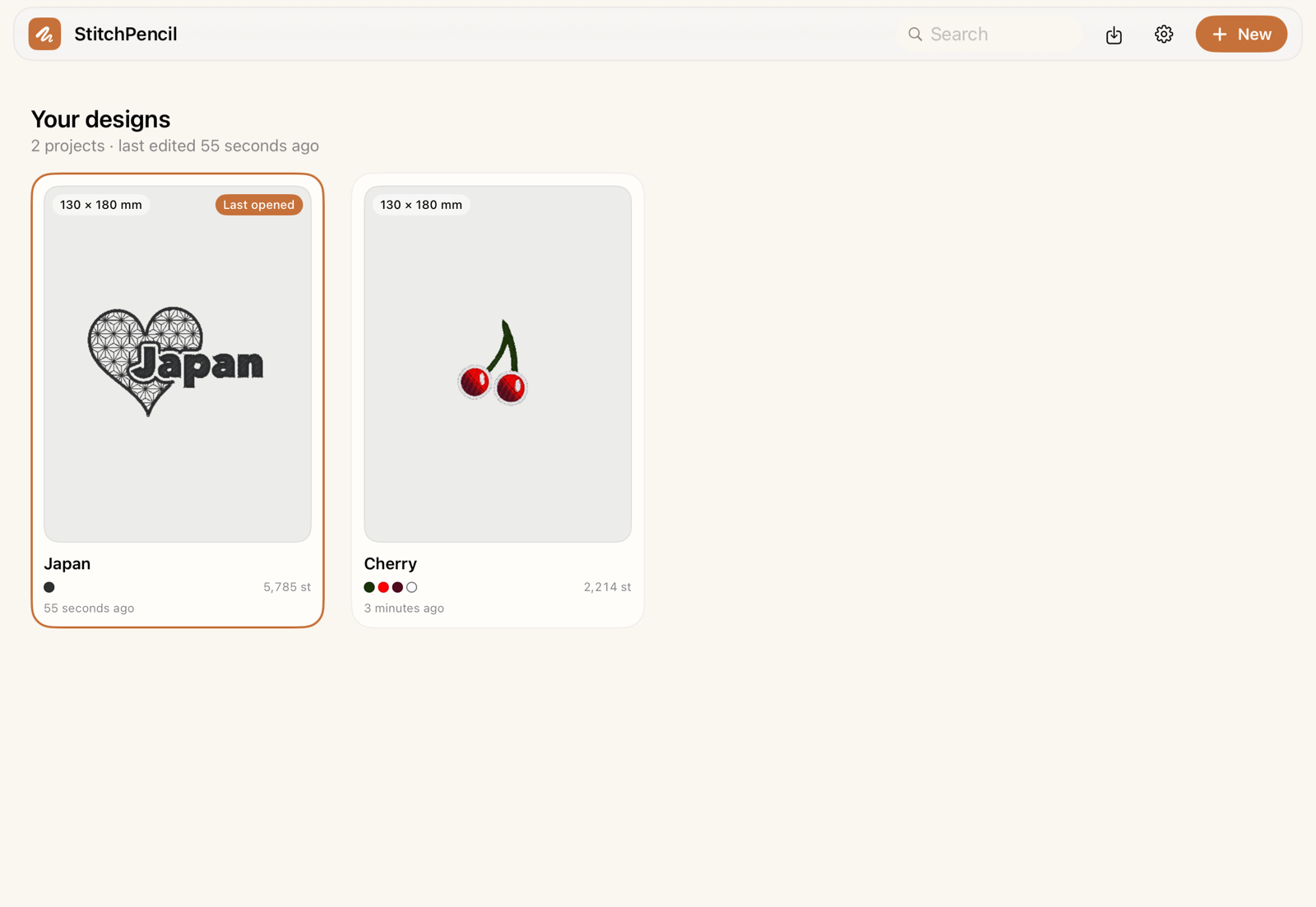
How do I create my first design?
Section titled “How do I create my first design?”Tap + New in the top bar (or Start a new design on the empty state). A New Design sheet opens with:
- Name — defaults to “Untitled”, editable immediately
- Hoop — your own list of hoops (it starts with 50×70, 100×100, 130×180, 160×260 and 200×300 mm) plus a Custom row with your own W×H. A typed size can be kept with Keep as a hoop; the list itself — names, sizes, what stays and what goes — lives under App settings
Pick a hoop, adjust the name if you like, and tap Create. StitchPencil remembers the hoop size and unit you used last time, so the next new design starts from the same defaults.
What do I see right after creating a design?
Section titled “What do I see right after creating a design?”The editor: an empty canvas sized to your hoop, the tool rail on the left (Run / Satin / Fill quick-access tiles, Points, Text, Shapes, Select), and the top bar with the design title, an undo/redo pair, a status chip with the design-check lamp (stitch count · colors · size), and Layers · Color · Export · Settings on the right. Nothing is selected yet — pick a tool from the rail to start drawing, or read the interface overview for a full tour of what everything does.
How do I get back to the Gallery?
Section titled “How do I get back to the Gallery?”Tap the small grid icon at the top-left of the editor. Any changes are autosaved before you leave — there’s no explicit “Save” button to hunt for.